
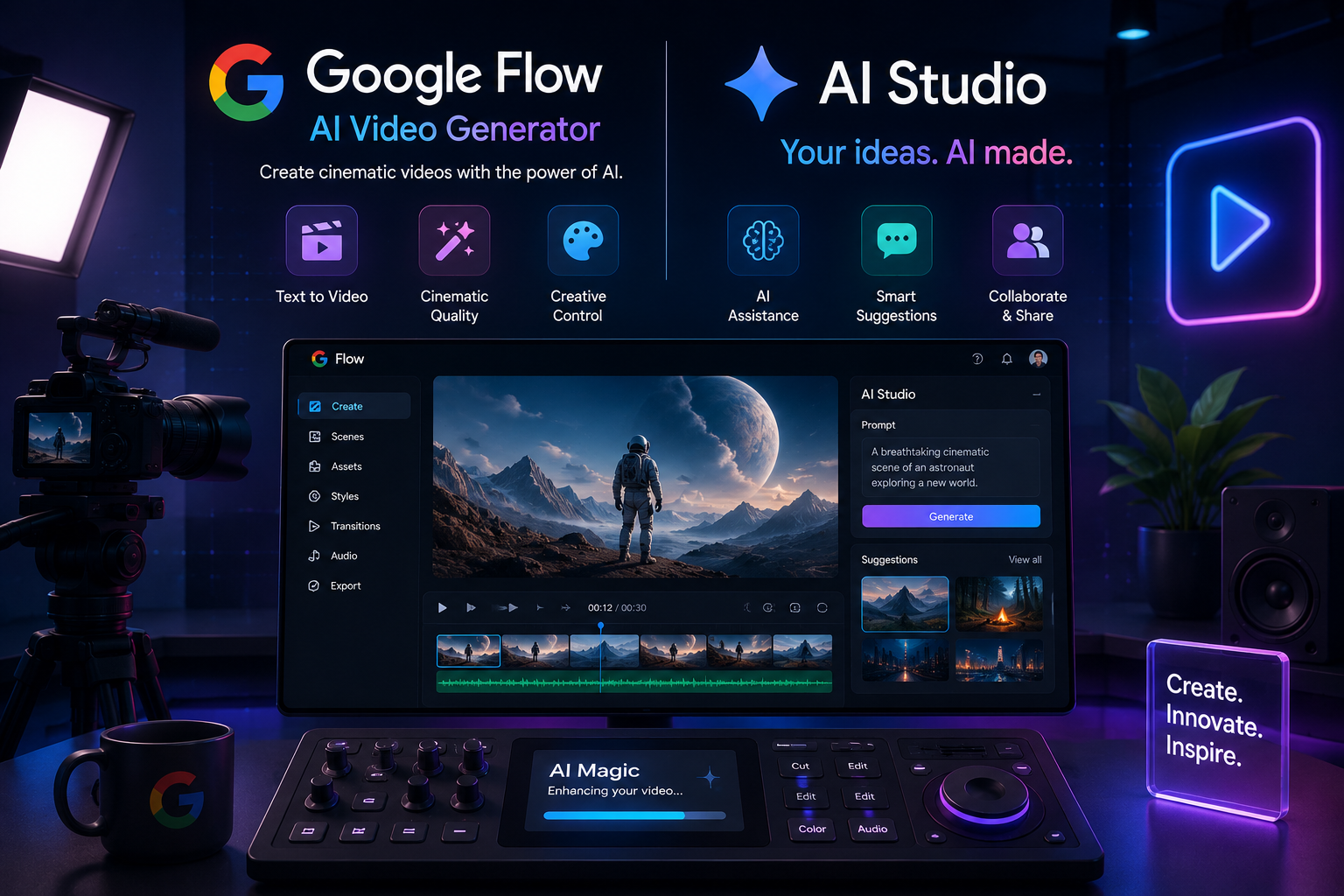
If you’ve heard people talk about typing a sentence into a box and getting a finished video clip back, they were probably talking about Google Flow. It’s Google’s AI-powered creative studio for turning ideas, written prompts, reference images, or existing footage into images and cinematic video clips, and it’s become one of the more talked-about tools in the AI filmmaking space.
This guide explains what Google Flow actually is, how it works in practice, what it costs, and who it makes sense for without the marketing gloss.
What Is Google Flow?
Google Flow is an AI filmmaking tool from Google Labs, built on Google DeepMind’s generative models. It was introduced as the only AI filmmaking tool custom-designed for Google’s Veo, Imagen, and Gemini models, and its job is to help creators go from a simple idea to a finished, high-definition video clip in a fraction of the time traditional production would take.
In February 2026, Google significantly expanded what Flow could do. The company merged three previously separate tools Flow, Whisk (its visual mood-board tool), and ImageFX (its text-to-image generator) into one unified workspace. That means image generation, mood-boarding, and video generation now live in the same place, instead of requiring you to bounce between separate apps.
The result is a single pipeline: sketch out a visual idea, turn it into a still image, then animate it into a video clip, all without leaving Flow.
A Quick Origin Story
Flow didn’t appear out of nowhere. Here’s the short version of how it got here:
- May 2025: Flow launches at Google I/O as a dedicated AI filmmaking tool built around Veo for text-to-video generation.
- Late 2025: Google adds longer video generation (extending clips beyond their original length) and improves audio realism.
- February 2026: Flow absorbs Whisk and ImageFX into a single unified workspace.
- April 2026: Whisk is fully retired, with its features and saved projects folded into Flow.
- May 2026 (Google I/O): Google announces a Flow Agent for multi-step creative tasks, plus dedicated mobile apps.
Knowing this timeline matters if you’ve used an older tutorial or reviewed a lot of what was written about Flow before February 2026, which describes a narrower, video-only version of the tool.
How Does Google Flow Work?
At a basic level, using Flow follows a simple loop: describe what you want, generate it, refine it, and build it into something bigger.
- Start a project: Open Flow and create a new project, choosing whether you’re beginning with an image, a video prompt, or an existing asset (like a photo or a piece of footage).
- Describe your idea in plain language: You don’t need special prompt syntax. A description like “a quiet coastal town at sunrise, soft golden light, a fishing boat leaving the harbor” is enough to get started.
- Choose your generation model: Flow gives you access to Google’s image model (Nano Banana, formerly ImageFX) for stills and Veo for video, including faster or higher-quality variants depending on your plan.
- Generate and review: Flow typically produces multiple variations so you can pick the version closest to what you had in mind.
- Refine with tools built for filmmakers, including:
- Camera Controls adjust angle, pan, tilt, or zoom using text descriptions instead of manual editing.
- Scene Builder extends a shot, continues the action, or transitions into the next moment while keeping the scene consistent.
- Ingredients / Asset Management save characters, objects, and environments so they stay visually consistent across multiple clips.
- Assemble your story: Once you have the clips or images you want, you stitch them together into a coherent sequence directly inside Flow.
One detail worth knowing: Veo, the video model behind Flow, generates audio as part of the video itself ambient sound, effects, and, in some cases, dialogue rather than requiring you to add a soundtrack afterward.
Who Is Google Flow For?
Flow was designed with a fairly broad audience in mind, but it tends to be genuinely useful for a few specific groups:
- Independent filmmakers and storytellers who want to previsualize scenes, test ideas, or produce short films without a full production crew.
- Content creators and social video makers who need short, polished clips quickly.
- Marketers and brand teams producing concept videos, ad variations, or campaign visuals without booking a shoot.
- Educators who can use it to visualize concepts, historical scenes, or lesson content.
- Curious beginners who want to experiment with AI video without learning traditional editing software first.
It’s worth being honest about who it’s not ideal for: if you need frame-by-frame manual control, complex multi-camera editing, or the kind of fine post-production work a traditional editing suite handles, Flow is a generation and pre-visualization tool first, not a replacement for a full editing pipeline.
Google Flow Pricing
Flow’s pricing is tied to Google’s broader AI subscription tiers rather than sold as a standalone product, and the credit allowances have changed more than once since launch, so it’s worth checking Google’s official pricing page before you commit. As of mid-2026, the general structure looks like this:
| Plan | Approx. Monthly Price | Flow Credits/Month | Notes |
| Free | $0 | Limited daily credits | Basic access, no subscription required |
| Google AI Plus | ~$4.99 | 200 | Entry-level paid tier |
| Google AI Pro | ~$19.99 | 1,000 | Higher-priority generation, broader model access |
| Google AI Ultra (lower tier) | ~$99.99 | 10,000 | Built for high-volume creators and teams |
| Google AI Ultra (higher tier) | ~$199.99 | 25,000 | Highest limits, early access to new features |
| Note: Pricing and credit allowances vary by country and change periodically, so treat the figures above as a general guide rather than a guaranteed rate. | |||
A few practical notes:
- Credits don’t roll over month to month, so unused credits are lost at renewal.
- Google Flow also requires age verification (18+) and is only available in supported regions.
Google Flow Key Features at a Glance
- Text-to-video and text-to-image generation using Google’s Veo and Nano Banana/Imagen models
- Camera Controls for directing shot angles and movement through text
- Scene Builder for extending and continuing shots
- Character and asset consistency across multiple generations
- Native audio generation built into video clips
- Flow TV, a showcase of clips made with Flow, including the prompts used to create them
- Mobile apps, with the video editor available on Android and further rollout expected over time
Common Mistakes to Avoid When Using Flow
- Being too vague with prompts. Specific, descriptive prompts (lighting, mood, camera angle, setting) consistently produce more usable results than short, generic ones.
- Ignoring the free daily credits before upgrading. It’s worth testing the workflow on a lower tier before committing to a higher one.
- Expecting perfect consistency on the first try. Character and scene consistency across clips generally improves with iteration and reference assets, not a single prompt.
- Treating it as a full editing suite. Flow is strongest at generation and scene assembly; complex multi-track editing is still better handled elsewhere.
Conclusion
Google Flow has grown from a narrow, video-only experiment into a genuinely comprehensive AI creative studio one that lets you move from a rough idea to a finished, styled video clip without switching tools or needing a production crew. It won’t replace a full editing suite for complex projects, but for previsualization, short-form content, concept work, and fast creative iteration, it’s one of the more capable tools currently available.
If you’re weighing whether to try it, the free tier is the lowest-risk starting point: test a few prompts, get a feel for Camera Controls and Scene Builder, and decide from there whether a paid tier is worth it for your workflow.

1 Comment
Pingback: Best AI Video Generators: Which One Actually Wins Where